Your day-trip guide sends a WhatsApp voice note just as you’re heading downstairs. You recognize the hotel name and hear “eight thirty.” Both match your booking, so you assume nothing has changed. But the guide has moved the pickup from the hotel entrance to the café across the street.
A familiar time or place name can make the rest of a message sound more familiar than it is. Before heading out, translate the whole update and confirm the details you’ll act on. In this case, the departure time stays the same, but where you wait changes.
Start With WhatsApp’s Voice Message Transcripts
If your device supports the language spoken in the message, WhatsApp can turn the voice note into text. The feature is off by default. Go to Settings > Chats > Voice message transcripts, turn it on, and select the spoken language. Then press and hold the voice note and tap Transcribe. WhatsApp generates the transcript on your device, and the voice message remains end-to-end encrypted.
The transcript is still in the original language. You might spot “8:30” and the hotel name without understanding that the guide said to wait across from the hotel. Transcripts can also contain errors, so treat names, numbers, and directions as details to verify. Language availability varies by device and operating system.
If you can copy the transcript, paste it into a text translator and read through to the end. The guide may repeat the original plan before explaining what has changed. If transcription isn’t available for the language or the text is too garbled to use, try translating the audio or ask for the update in writing.
Translate a Short Voice Note in Your Browser
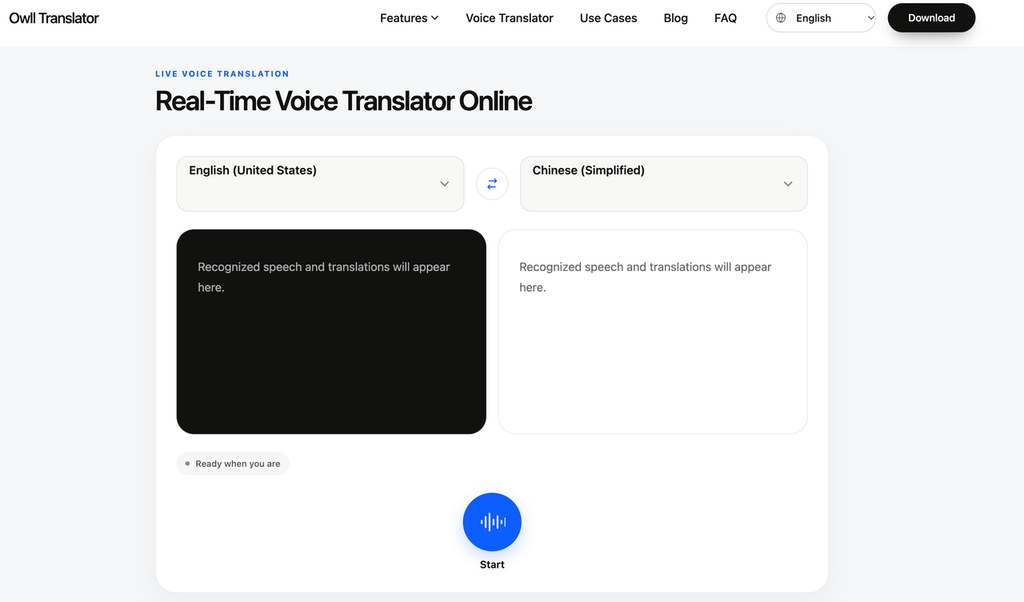
If you have two devices, open Owll Translator’s voice translator online tool on one and play the WhatsApp message on the other. Select the language spoken in the recording and the language you want to read, then allow microphone access. In a quiet spot, play the note near the microphone and read the translated captions. This setup avoids relying on one phone to play the audio and capture it through the browser at the same time.
The free web trial allows up to one minute in total, so it’s best suited to a brief update. If you expect to translate several messages on a trip, consider installing the mobile app beforehand and checking its plan limits.
If your phone lets you share the note as an audio file, another option is a translation app that explicitly supports audio uploads. The browser tool uses microphone input. If you’re already close to pickup time, asking the guide to type the new meeting point and arrival time may be faster than trying another tool.
Compare the Translation With Your Booking
Suppose the translated message says:
“We’re still leaving at 8:30. Today we’ll pick you up outside the café across from the hotel. Please wait on the café side of the street.”
Your booking says to wait at the hotel entrance. In the new message, the hotel is a landmark. The guide also gives a departure time without saying exactly when you need to reach the café. Those are two separate details to confirm.
Look for words that change what you do. Across from and next to send you to different places. Leaving at 8:30 and be there by 8:30 can mean different things. If the café name looks odd in translation, ask for the spelling as it appears on the sign. Better yet, request a map pin for the exact pickup spot. A pin for the hotel alone still leaves you guessing which side of the street to wait on.
You don’t need to understand every detail to get moving. Why the driver changed the route may not matter. Where you should stand, when to arrive, and what to look for when you get there do.
Send a Reply the Guide Can Correct
“OK, thanks” tells the guide you received the message. It doesn’t tell them where you’ll be standing. Send back what you understood and ask for the missing detail:
Hi! Should I wait outside the café across from the hotel, on the café side of the street? Could you send me a map pin and confirm what time I should be there? Thanks!
If the pin points to a block with several entrances, ask what you should look for: the café sign, a street number, or the guide’s vehicle. Once the guide confirms, save the written reply and the pin together. If you’re traveling with someone, share that confirmed update so you’re both following the same instructions.
Frequently Asked Questions
Doesn’t WhatsApp already transcribe voice messages?
Yes, for supported languages and devices. Transcription turns speech into text in the language spoken. If you don’t read that language, you can translate the transcript or audio, or ask the sender to put the update in writing in a language you understand.
What if the translation sounds wrong?
Ask the guide about the specific line you’re unsure of and request a written reply. “Do you mean the café beside the hotel or the one across the street?” is easier to answer than “What did you say?” For a location, ask for a map pin as well.
Should I reply in the guide’s language?
A short English reply is fine if the guide understands it. Use simple sentences and keep the location and time easy to spot. If you translate your reply, keep the original place name alongside the translation so the guide can verify it. If your guide speaks Spanish, a few basics like “Puede ayudarme?” go a long way, and this list of essential Spanish phrases for travelers covers the ones you’ll use most.
What if my phone can’t share the voice note?
You can play it near a translation tool’s microphone if you have a second device. If you’re in a noisy place or short on time, ask the guide to type where to wait and when to arrive.
What say you?
Thoughts on how to Translate WhatsApp Voice Messages?
Let’s hear it!